Table of Contents
- How Much RAM Do You Actually Need for Gaming?
- Does More RAM Actually Increase FPS in Games?
- RAM Speed vs. Capacity for Gaming: Which Matters More?
- How to Check RAM Usage While Gaming
- Virtual Memory and Pagefile: What Happens When RAM Runs Out
- How to Upgrade RAM on a Desktop
- Common Misconceptions About RAM and Gaming Performance
- Frequently Asked Questions
Last Updated: August 28, 2026
How Much RAM Do You Actually Need for Gaming?
The honest answer is that most gamers are either underequipped or buying more than their system can actually use. The culprit is often a RAM mismatch, not a failing component.
RAM is your system’s short-term memory. It holds the data your CPU and GPU need right now: game assets, textures, active processes, and operating system overhead. When RAM fills up, your system starts leaning on virtual memory, and that’s where performance falls apart.
Here’s the practical breakdown by tier:
8GB vs. 16GB vs. 32GB: What Each Tier Delivers
RAM Amount | Gaming Reality | Best For | Key Limitation |
|---|---|---|---|
8GB | Struggles with modern titles | Budget builds, older games | Frequent stuttering, OS overhead eats into capacity |
16GB | Sweet spot for most games | 1080p-1440p gaming, general use | May bottleneck in memory-heavy titles by 2026 |
32GB | Future-proof headroom | 4K gaming, streaming, content creation | Diminishing returns unless workflow demands it |
8GB is genuinely insufficient for most modern games in 2026. Windows alone consumes 3-4GB at idle, leaving little room for a game that might demand 6-8GB on its own. The result: stuttering, long load times, and dropped frame rates as the system pages data in and out of storage.
16GB is the current sweet spot. Most titles run comfortably within this ceiling, and you have enough headroom to keep a browser, Discord, and streaming software open without tanking performance.
32GB is where the calculus gets interesting.
How Modern Game Engines Like Unreal Engine 5 Change the Equation
Unreal Engine 5 has fundamentally shifted what games demand from system memory. Its Nanite virtualized geometry and Lumen global illumination systems load significantly more asset data into memory than previous-generation engines. Titles built on UE5 routinely push memory use past what was typical even two years ago.
According to Epic Games’ Unreal Engine documentation, Nanite geometry requires substantial memory bandwidth to stream virtualized meshes at runtime. In practice, this means UE5 games often use 10-12GB of system RAM during active gameplay, before accounting for OS overhead or background processes.
For gamers playing current and upcoming AAA titles on UE5, 16GB is the minimum. 32GB provides meaningful breathing room. This is a genuine shift from the advice that was accurate just three years ago.
Does More RAM Actually Increase FPS in Games?
More RAM increases FPS only when RAM is the active bottleneck. That distinction matters more than most guides acknowledge.
If your system has 8GB and a game needs 10GB, adding RAM to 16GB will produce a dramatic, measurable improvement. Frame rates stabilize, stuttering disappears, and load times drop. If your system already has 16GB and the game uses 9GB, doubling to 32GB will produce almost no change in frame rates.
When RAM Is the Bottleneck (and When It Isn’t)
The clearest sign of a RAM bottleneck is stuttering combined with high memory use. Drops in average FPS with a GPU that isn’t maxed out often point to memory pressure rather than graphics processing limits.
When RAM is NOT the bottleneck, upgrading capacity delivers almost nothing. A system bottlenecked by its GPU won’t benefit from more memory. A CPU-bottlenecked system won’t either. Before spending money on more RAM, check what’s actually limiting performance.
The most common mistake is assuming that “more is always better.” It isn’t. Spending on the right amount matters far more than spending on the maximum amount.
Dual-Channel Configuration: The Free Performance Upgrade Most Gamers Skip
This is the part most guides bury in a footnote, but it deserves direct attention. Dual-channel memory configuration is one of the highest-value, zero-cost upgrades available to anyone who already owns two matching DIMM sticks.
Dual-channel is a memory architecture where two RAM modules communicate with the CPU simultaneously, effectively doubling the memory bandwidth available compared to a single-channel setup.
The performance difference is real and measurable. Memory-intensive games and GPU-integrated systems, particularly AMD APUs, show substantial gains from dual-channel versus single-channel at identical capacity. A system running 2x8GB in dual-channel will consistently outperform a system running 1x16GB in single-channel, even though the total capacity is identical.
Check your motherboard manual for the correct DIMM slot configuration. Most boards require modules in slots 2 and 4 (not 1 and 2) to enable dual-channel. Getting this wrong is more common than it should be.
RAM Speed vs. Capacity for Gaming: Which Matters More?
Capacity wins the argument in most gaming scenarios. A system starved for memory will stutter regardless of how fast that memory is. But once you have adequate capacity, memory frequency starts to matter.
Memory frequency is measured in MHz and determines how quickly data transfers between RAM and the CPU. DDR4 commonly runs at 3200-3600MHz; DDR5 starts around 4800MHz and scales considerably higher. Higher clock speeds translate to better memory bandwidth and lower latency in data-intensive workloads.
For gaming specifically, the gains from moving from DDR4-3200 to DDR4-3600 are real but modest in most titles. The exception is integrated graphics and AMD Ryzen processors, which are more sensitive to memory bandwidth due to their architecture.
CAS Latency vs. Clock Speed: What the Numbers Mean
CAS latency is the delay between when the CPU requests data from RAM and when that data is delivered, measured in clock cycles. Lower CL numbers mean faster response.
The relationship between CL and clock speed is nuanced. DDR4-3200 CL16 and DDR4-3600 CL18 have nearly identical real-world latency, because the higher clock speed compensates for the higher CL number. Calculating actual latency in nanoseconds requires dividing the CL by half the frequency.
For gaming, prioritize:
- Adequate capacity first (16GB minimum in 2026)
- Dual-channel configuration second
- Clock speed third (aim for DDR4-3200 or DDR5-5200 as baseline)
- CAS latency last, unless you’re optimizing a high-end competitive build
How to Check RAM Usage While Gaming
Monitoring actual memory use during gameplay is the most reliable way to answer whether is adding more ram worth it for gaming in your specific setup.
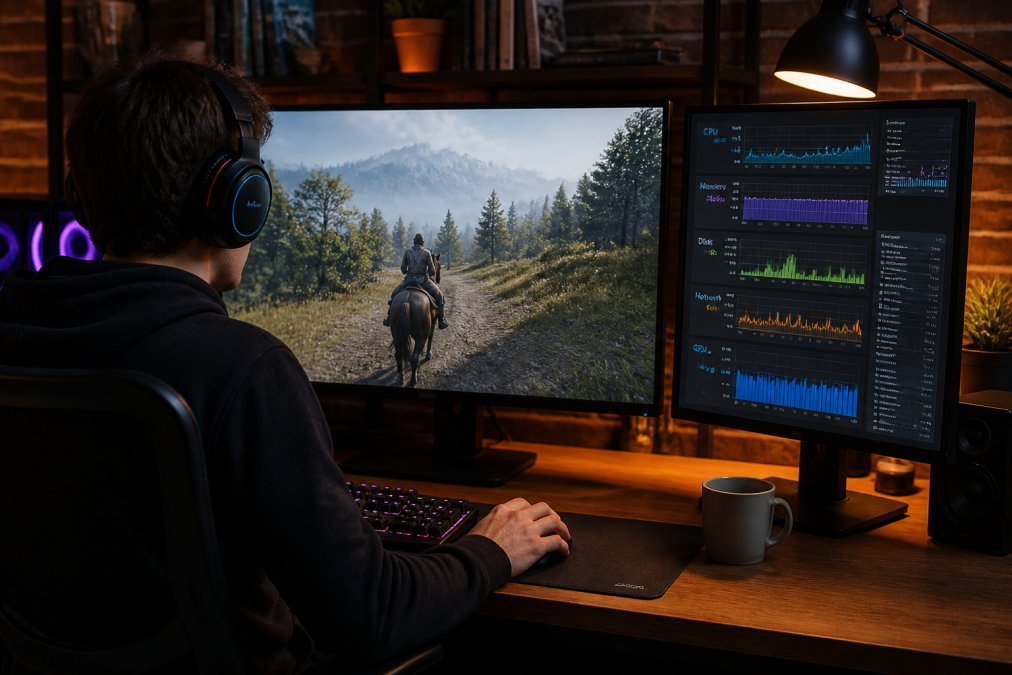
The most accessible method uses Task Manager’s Performance tab. Press Ctrl + Shift + Esc, select Performance, then Memory. This shows real-time RAM usage, available memory, and memory speed.
Book Consultation/Appointment →
For in-game overlays, tools like MSI Afterburner with RivaTuner Statistics Server display memory use directly on screen while you play. This gives you accurate readings under actual gaming load rather than idle conditions.
Reading Your Results: Signs You Actually Need More RAM
- Memory use consistently above 85-90%: Your system is under pressure and likely paging to disk
- Stuttering during open-world exploration or scene transitions: Classic sign of memory thrashing
- Long load times combined with high RAM usage: The system is struggling to fit assets into available memory
- GPU usage drops below 80% during stutters: Memory pressure is interrupting the GPU’s work queue
If your use sits comfortably below 75% during gameplay, more RAM will not improve your experience. Upgrade your GPU or CPU instead.
Virtual Memory and Pagefile: What Happens When RAM Runs Out
Virtual memory is a Windows feature that uses a portion of your storage drive as an overflow buffer when physical RAM is exhausted. The pagefile acts as a slow extension of system memory.
The problem is that even a fast NVMe SSD is orders of magnitude slower than DDR4 RAM. When a game starts pulling data from the pagefile, frame rates collapse and stuttering becomes severe. This is not a performance optimization; it’s a failure state.
According to Microsoft’s documentation on virtual memory in Windows, Windows manages pagefile size automatically by default, but the performance penalty for heavy pagefile use is significant regardless of storage speed.
The practical implication: if you’re regularly hitting your RAM ceiling, no amount of pagefile tuning will substitute for a physical RAM upgrade. Virtual memory keeps the system from crashing; it does not keep games running smoothly.
How to Upgrade RAM on a Desktop
Upgrading desktop RAM is one of the most accessible hardware modifications available, and it’s a repair category the Normal Gadgets team handles regularly for customers who aren’t comfortable opening their machines.
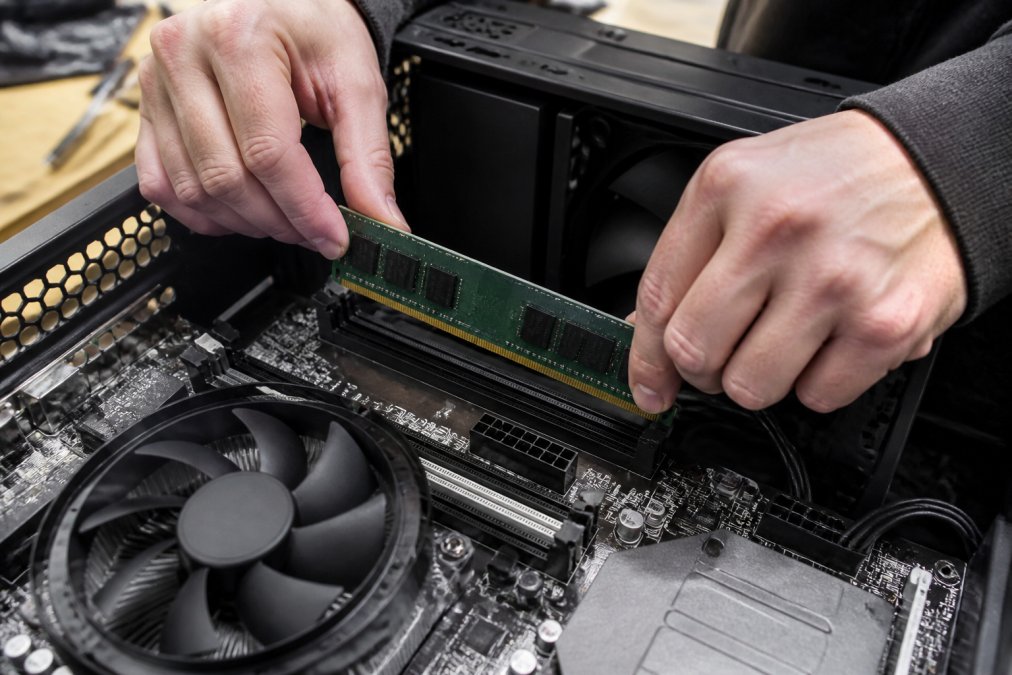
Step 1: Check Your Motherboard’s DIMM Slots and Maximum Capacity
Before purchasing anything, identify your motherboard model and check its specifications. Key details:
- Number of DIMM slots (typically 2 or 4 on consumer boards)
- Maximum supported RAM capacity
- Supported memory types (DDR4 vs. DDR5, these are not interchangeable)
- Maximum supported frequency
Your motherboard manual or the manufacturer’s product page lists these specifications. Tools like CPU-Z can identify your current hardware if you don’t have the documentation.
As documented in JEDEC’s DDR5 memory standard specifications, DDR4 and DDR5 use different physical connectors and voltage requirements, making them incompatible in the same slot. Confirm which generation your board supports before ordering.
Step 2: Choose the Right DDR4 or DDR5 Kit
Buy a matched kit rather than individual sticks. Matched kits are tested together by the manufacturer and are more likely to run at rated speeds without stability issues. For dual-channel, choose a 2x8GB or 2x16GB kit.
Check your motherboard’s QVL (Qualified Vendor List) for confirmed-compatible memory kits. This list, available on the manufacturer’s website, identifies modules that have been tested on that specific board.
Step 3: Install the Modules and Enable XMP Profile in BIOS
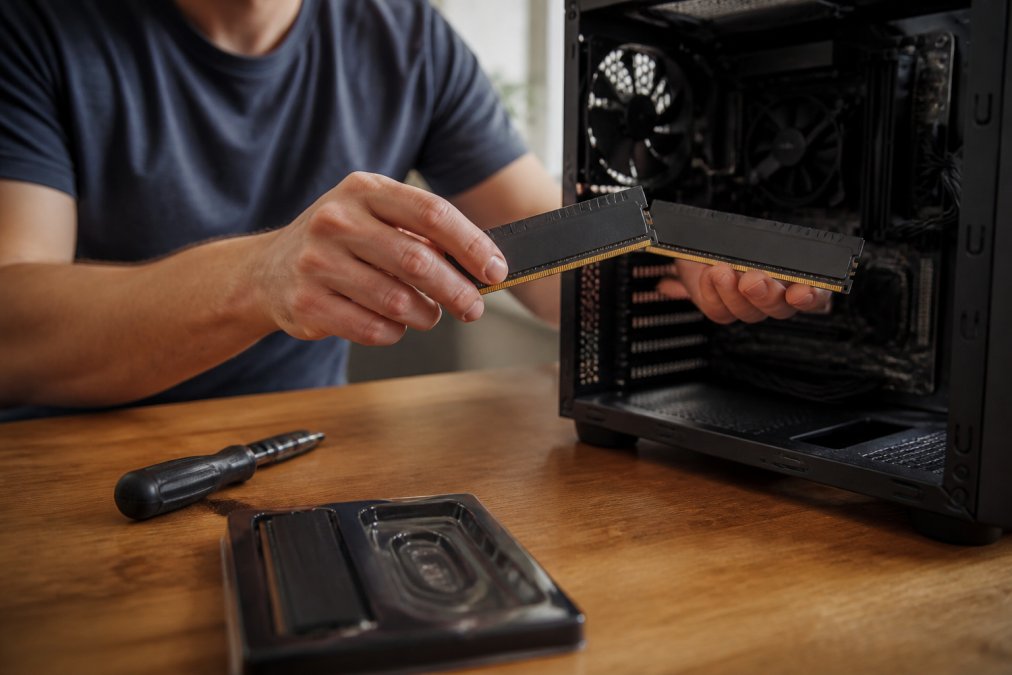
Power down completely and discharge static by touching a grounded metal surface. Open the case and locate the DIMM slots.
- Release the retention clips on both ends of the target slots
- Align the module’s notch with the slot key (it only fits one way)
- Press firmly and evenly until both clips click into place
- Repeat for the second module in the correct dual-channel slot
On first boot, enter BIOS and enable the XMP profile. This applies the rated frequency and timings. Without this step, your new DDR4-3600 kit runs at 2133MHz by default.
Common Misconceptions About RAM and Gaming Performance
“More RAM always means better performance.” Wrong. Performance improvements from adding RAM only occur when RAM is the actual bottleneck. A GPU-limited system sees zero benefit from more memory.
“RAM speed doesn’t matter for gaming.” Partially wrong. Capacity matters more, but memory frequency has meaningful impact on AMD Ryzen systems, APUs, and memory-bandwidth-sensitive titles. Don’t ignore it entirely.
“DDR5 is always faster than DDR4 for gaming.” Not universally true. Early DDR5 at high CAS latency can perform similarly to well-tuned DDR4 in gaming workloads. The advantage of DDR5 grows with higher frequencies and in workloads that genuinely saturate memory bandwidth, such as 4K rendering and streaming simultaneously.
“Virtual memory solves the problem if you’re low on RAM.” No. The pagefile prevents crashes but does not maintain gaming performance. As covered above, pagefile-heavy operation causes severe stuttering that no storage speed can fully mitigate.
“You need to match RAM brand exactly when upgrading.” Not strictly required, but matching specifications (frequency, CAS latency, voltage) matters. Mismatched kits sometimes run at reduced speeds or require manual BIOS configuration to achieve stability.
For anyone uncertain about compatibility or uncomfortable with the physical installation process, professional installation avoids the risk of seating modules incorrectly or enabling incompatible XMP profiles that cause boot failures.
Whether is adding more ram worth it for gaming comes down to one honest question: is RAM the actual bottleneck in your system right now? Check your use, confirm your dual-channel configuration, and then decide. If you’re running 8GB in 2026, upgrading to 16GB is almost certainly worthwhile. If you’re at 16GB with comfortable headroom, spend that money on your GPU instead.
When the upgrade is worth doing but the installation feels uncertain, Normal Gadgets provides professional hardware service with the same technical precision we’ve applied to more than 125,000 device repairs since 2012. Book a consultation and get the job done right the first time.
Frequently Asked Questions
Will adding more RAM increase my FPS in games?
Adding more RAM increases FPS only when RAM is the actual bottleneck. If your system is running 8GB and a game requires close to that amount, upgrading to 16GB can reduce stuttering and improve frame rates noticeably. Beyond 16GB, gains are minimal for most titles at 1080p and 1440p. At 4K with background processes running, 32GB provides more headroom. If your GPU or CPU is the limiting factor, more RAM for gaming won’t move the needle on frame rates.
Does RAM speed matter more than capacity for gaming?
For most gamers, capacity matters more than speed up to a point. Going from 8GB to 16GB produces a larger real-world difference than jumping from DDR4-3200 to DDR4-3600. That said, once you have adequate capacity, faster memory frequency and lower CAS latency do offer measurable improvements, particularly in CPU-bound scenarios and games built on demanding engines. Enabling your kit’s XMP profile in BIOS is the easiest first step to get the speed you already paid for.
Is 32GB of RAM overkill for gaming?
For pure gaming in 2026, 32GB is more than most titles require. However, it stops being overkill if you stream gameplay with software like OBS running simultaneously, keep a browser with many tabs open, or use creative applications alongside your games. Unreal Engine 5-based titles are also pushing memory utilization higher than older engines. If you multitask heavily or want a system that stays relevant for several more years, 32GB is a reasonable investment rather than excess.
How can I tell if my PC needs more RAM?
Open Task Manager during a gaming session and check the Performance tab. If memory utilization sits consistently above 85-90%, your system is under pressure and likely leaning on the pagefile, which is significantly slower than physical RAM. You may also notice stuttering, long load times, or frame rate drops that don’t match your GPU’s workload. These are reliable signs that adding more RAM for gaming would produce a noticeable improvement in system responsiveness and stability.
This article was written using GrandRanker