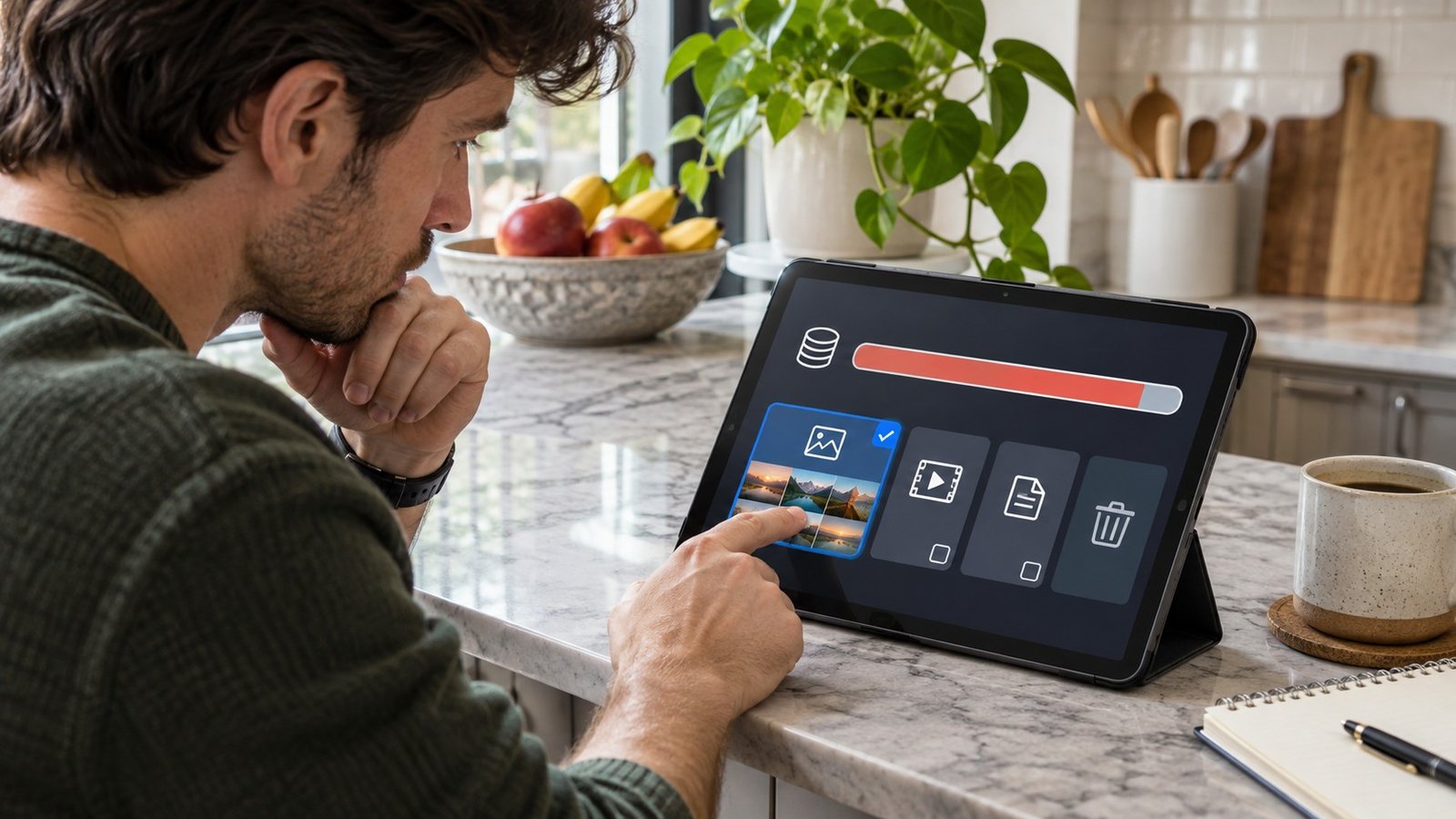

There is a familiar time to think about backups: right after a phone stops working or a laptop refuses to start. A better time is before the holiday photos, school projects and family videos start piling up. You do not need a complicated system to begin. You need to know which files matter, where another copy lives and whether you can actually open it.
Decide what you would miss
Start with a short list. Photos may be obvious, but documents, downloaded records and files stored on the desktop can be just as important. Consider every device used by the household. A laptop backup will not automatically explain what is happening on a phone, and a photo service does not necessarily include your other files.
Think about files that exist only in one place. A document attached to an old email or a video saved inside an app can be easy to overlook. Make a practical checklist rather than trying to reorganize every folder today. The goal is to find gaps before they turn into recovery problems.
Know what your chosen service does
Microsoft describes cloud and external-drive options for Windows backup. The right fit depends on factors such as internet access and file size. Start with the tools you already have, then read what they include. A service name or a reassuring icon does not tell you that every folder is protected.
Phone backups deserve their own check. Apple supports backing up an iPhone through iCloud or a computer. Some information syncs separately, so do not assume that one successful device backup describes every photo or app. Read the settings for the features you use and check for warnings about incomplete work or unavailable storage.
Try opening the copy
Choose a few ordinary files and a few especially important ones. Locate them through the backup destination, not just the original folder. Open them and confirm that the contents look right. A filename is encouraging, but a usable file is better evidence. For cloud services, make sure you understand which account holds the files.
Test a small recovery using the service’s instructions if you can do so without overwriting originals. Avoid a full-device restore as a casual experiment. Keep a note of the backup date and what you checked. You are creating a repeatable routine, not trying to prove that technology will never fail.
Keep deletion separate from backup checking
Do not celebrate a completed upload by immediately deleting the originals. First understand the service’s sync behavior and deletion rules. A shared library may behave differently from a separate archive. Check access from the account you expect to use if your main device becomes unavailable, and keep recovery information somewhere you can reach.
For an external copy, label the drive clearly and store it carefully. A drive left attached is convenient, but think through what happens if the computer and drive are affected by the same incident. Choose a routine that someone in your household will actually maintain. Set a regular date to check it again.
Normal Gadgets lists data retrieval and computer services, but a recovery attempt should not be your only plan for irreplaceable files. If you need help understanding a device problem or preparing for a transfer, book a visit. Bring your backup questions before the device becomes difficult to use.
Source: Official support guidance