The console lights up, the controller responds, and the television still says there is no signal. It is tempting to assume the HDMI port has failed, especially if someone recently moved the system. That may be one possibility, but the picture travels through several parts of the setup. A few careful checks can help narrow the problem without putting extra strain on the hardware.
Start with the television input
Use the TV remote to confirm the selected input matches the socket you are using. This sounds basic because it is, and it is worth checking before changing other settings. A television can have several HDMI inputs, and the selected one may have changed after another device was used.
Note the exact message on the screen. No signal, an intermittent picture and a picture with no sound are different symptoms. Also note whether the console ever shows its startup image. Those observations help distinguish a completely missing connection from a problem that appears later. Avoid repeatedly switching settings without recording what changed.
Check the cable path
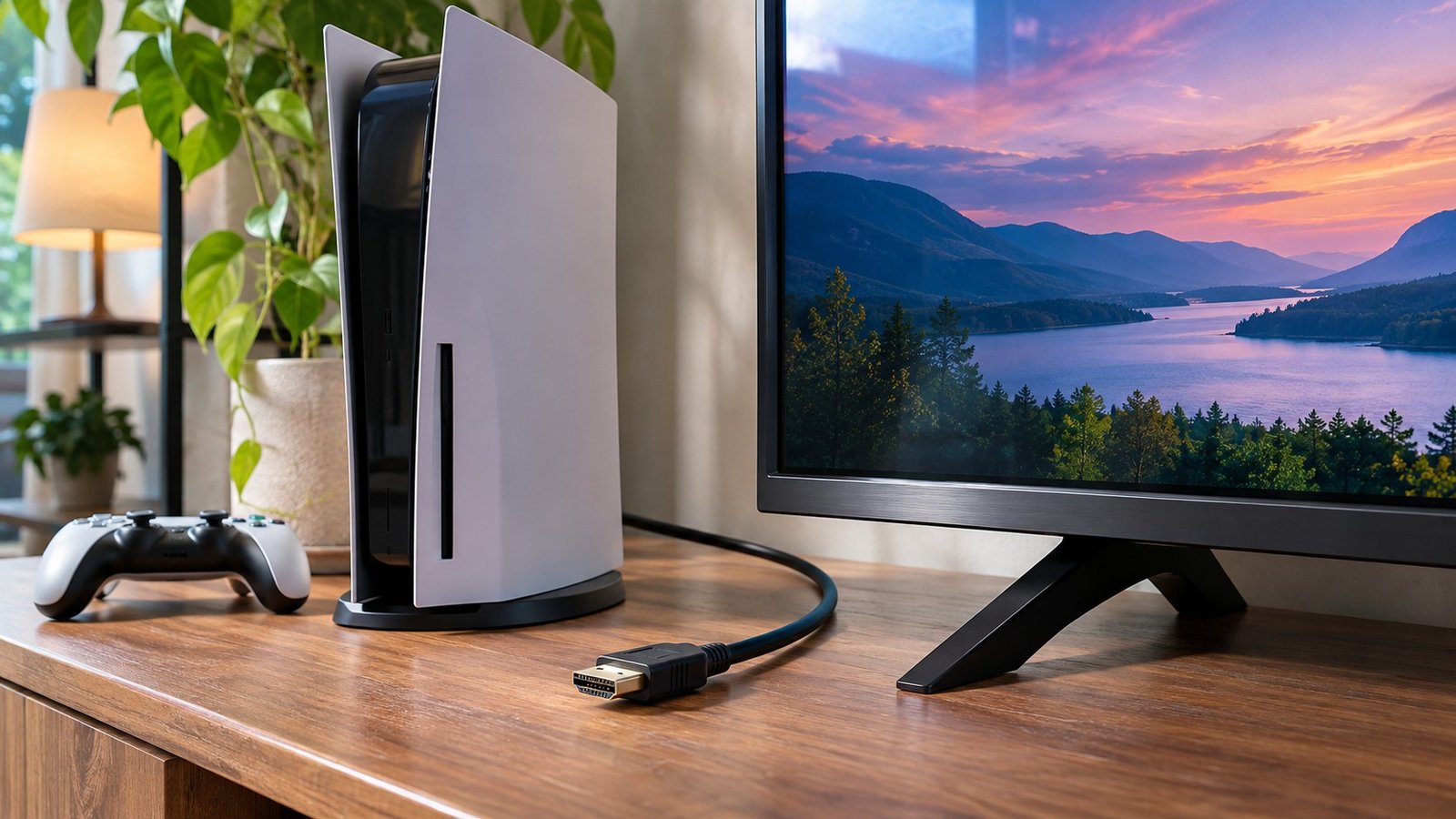
PlayStation’s picture troubleshooting guidance starts with secure HDMI connections. With the equipment safely turned off, inspect how the cable is routed and reconnect it gently. Do not force a plug that does not line up. A cable pulled tight across furniture can put stress on the connection whenever the console or television moves.
If your setup includes a receiver, switch or capture device, write down that path. A direct connection between the console and television can simplify troubleshooting when it is appropriate for your equipment. Follow the manufacturer’s instructions and change only one part of the setup at a time so the result tells you something.
Compare without buying blindly
If available, try a compatible, known-working HDMI cable and another appropriate TV input. Compatibility matters, especially when you are using higher-resolution or higher-refresh-rate features. A cable that gives an image in one setup does not automatically support every feature in another. The manufacturer’s support page is a better guide than guessing from the connector shape.
A second display can also provide useful information if you have one available. Keep the test simple and avoid pulling cables around while plugs remain under tension. You are looking for a repeatable difference, not trying to make the picture appear by holding the cable at an unusual angle.
Stop if the socket looks damaged
A bent connector, damaged socket or port that moves inside the casing needs inspection. Do not straighten internal contacts with a tool or keep testing by pushing harder. If the picture cuts out whenever the cable shifts, tell the technician that. It is an important clue, but it still does not establish the full repair needed.
Be careful with online advice involving recovery menus or resets. Some options can affect settings or data. Read the instructions for your exact console before selecting anything, and avoid destructive steps simply because a video skips over the warning. Safe Mode is not a reason to ignore what the menu says.
Normal Gadgets lists HDMI-port work among its gaming-system services. Bring the console’s model information and a description of the tests you tried. If the cable seems involved, bring it too. Book an appointment in Bloomington-Normal so we can discuss an inspection instead of guessing from a blank screen.
Source: Official support guidance