A laptop fan that suddenly becomes noticeable can make you wonder whether the computer is about to quit. Sometimes the sound appears during a demanding task. Sometimes it happens while the machine seems to be doing very little. The useful question is not just how loud it gets. It is what else is happening, how long it lasts and whether the computer’s behavior has changed.
Give the laptop breathing room
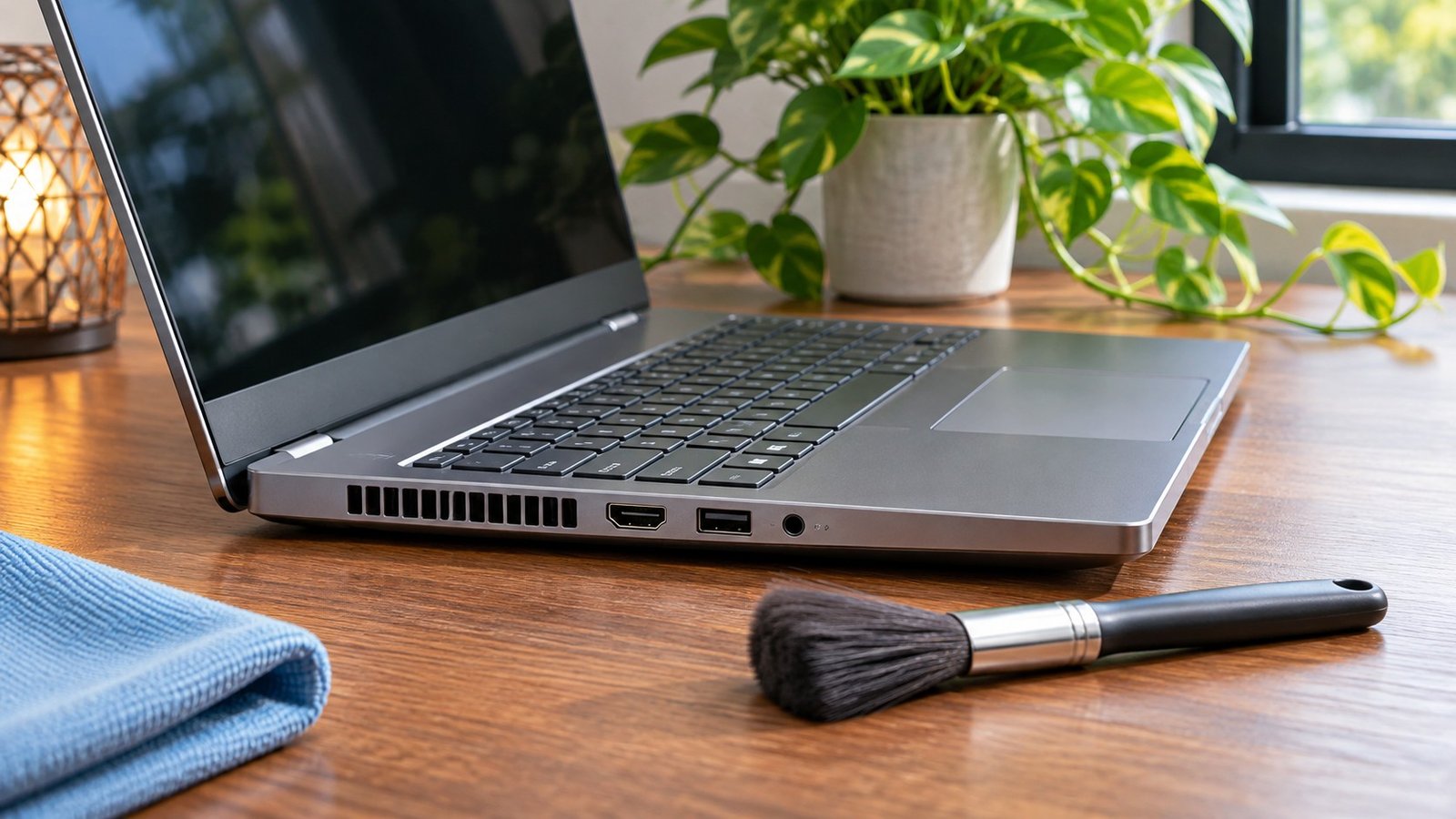
Start by looking at where the computer sits. A firm, stable surface is a better place to check the problem than bedding or a soft cushion that may cover ventilation openings. Keep nearby objects away from the vents and follow the manufacturer’s instructions for your model. Do not cover the machine while it is running.
You do not need to open the case to make this first observation. Look for an obvious blocked opening or a setup that traps the laptop against another object. If the problem started after moving to a different workspace, try the normal desk arrangement again. A simple comparison can help separate a location issue from an ongoing fault.
Pay attention to the timing
Notice whether the fan gets louder during a video call, a game, an update or another demanding activity. Write down how long it continues after that task ends. A short burst and a persistent new sound are different observations. Avoid deciding that every warm computer needs a new fan or that every fan noise is harmless.
Listen for a change in the kind of sound, too. Air movement is different from a new scraping or rattling noise. Record a short clip if the sound is intermittent, making sure no private information is visible. That can be more useful during an appointment than trying to imitate the noise after the laptop has cooled down.
Check the behavior around the noise
Is the laptop still responsive? Does it slow down, restart or shut off? Does the problem happen only on its charger? Keep those details separate in your notes. They help describe the problem without assigning a cause too early. Microsoft provides model-specific guidance for Surface warmth and performance, which is a useful reminder to consult the maker’s instructions.
Save your work and keep important files backed up while you investigate. If the machine repeatedly shuts down, do not keep running demanding tasks to reproduce the failure. Stop using it if you notice swelling, a burning smell or visible damage. Those signs deserve prompt attention rather than a longer home experiment.
Skip the aggressive cleanup
Do not spray liquid into ventilation slots or push tools through them. An online teardown for a similar-looking laptop may not match your exact model. Internal cleaning, battery access and fan work can involve different fasteners and fragile connections. If you are unsure, leave the case closed and focus on collecting useful information.
Bring the charger when the symptoms seem connected to charging or power. Include the model name, a description of the workload and any sound recording. A consistent history gives the technician a better starting point than a general request to make the computer faster. It also helps explain why the problem might not appear immediately at the counter.
Normal Gadgets offers laptop and desktop services in Bloomington-Normal. If the fan behavior is new, persistent or accompanied by other trouble, book a visit through our appointment page. We can discuss the symptoms and the appropriate next step without assuming noise alone identifies the repair.
Source: Official support guidance